 Magpie Search for Windows
Find any file.
By what's inside it.
Magpie Search reads the documents, PDFs, spreadsheets, slides, notes and pictures in your folders, even the text in screenshots, and finds any of them the moment you type.
- Free
- No account
- 100% on your PC
- Windows 10 & 11
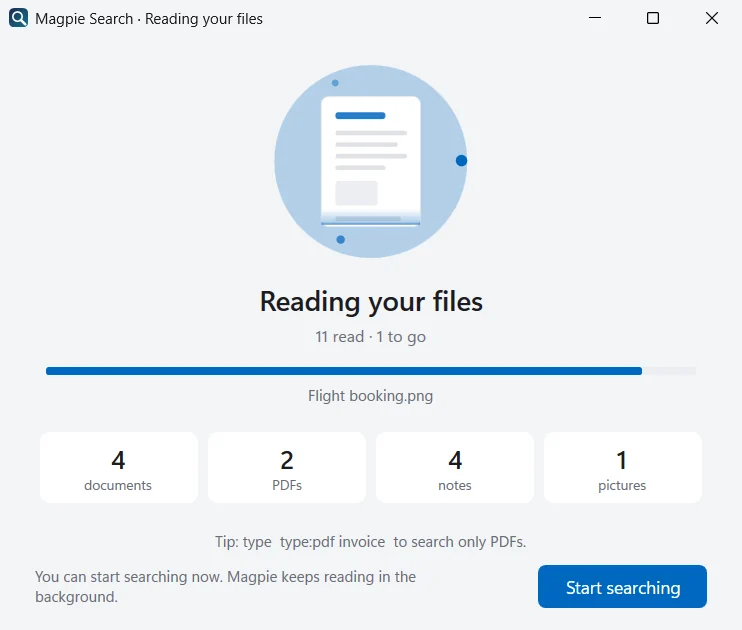
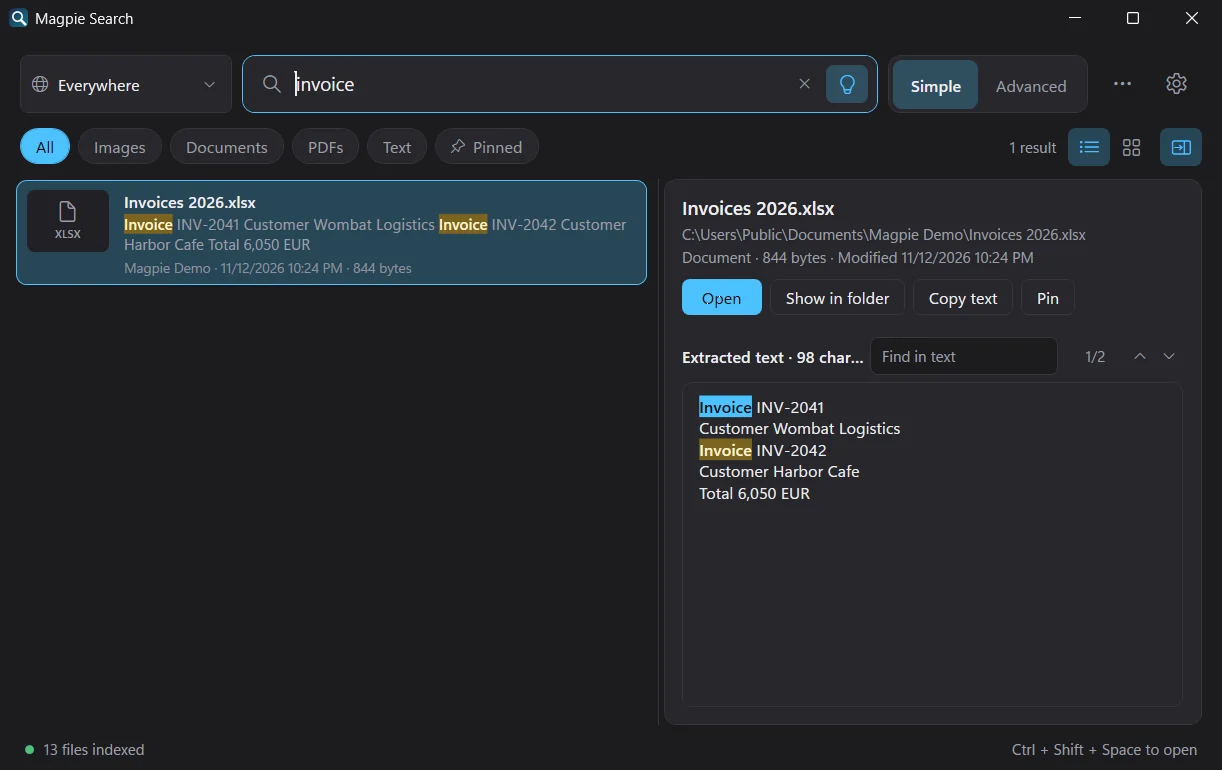
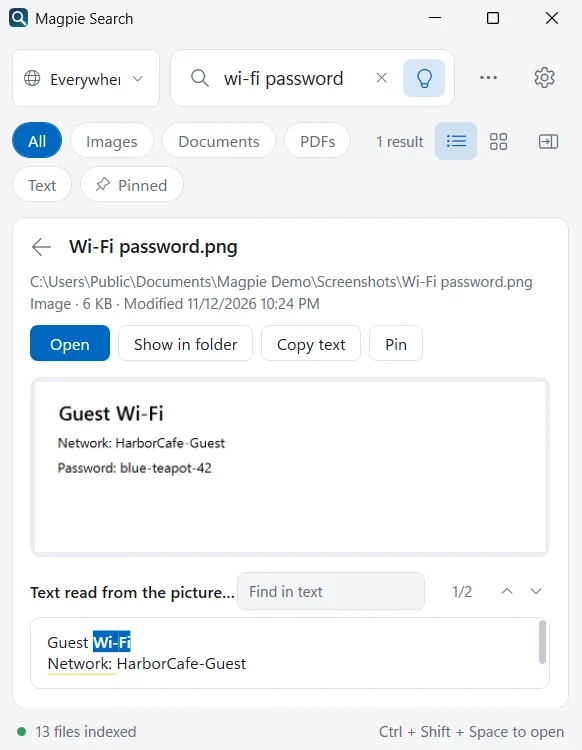
From a folder to an answer.
Three steps, and only the first one is yours.
-
Choose a folder
Documents, Desktop, Pictures, Screenshots, or any folder you like. Add more later.
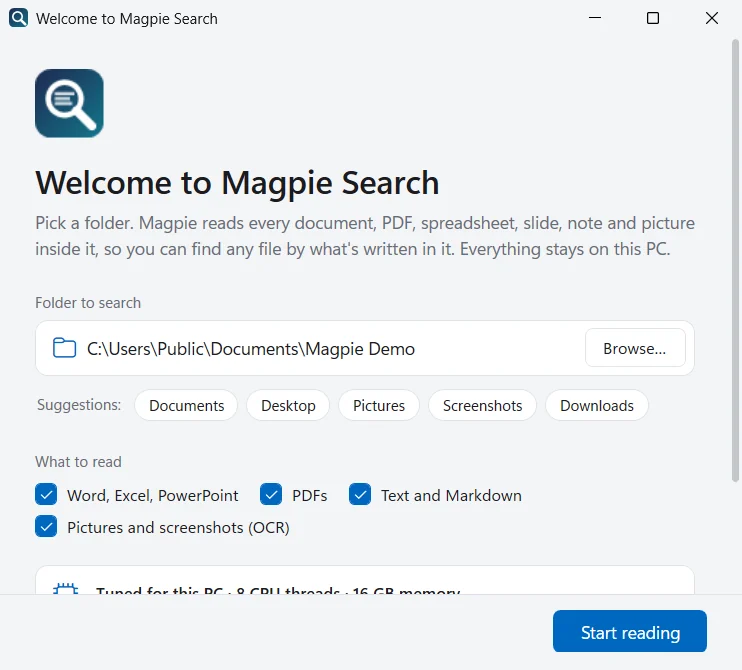
-
Magpie reads everything
Every document, PDF, note and picture becomes plain text in a small database on your PC.
-
Search by anything you remember
A word, a number, a phrase. Results appear as you type, with your words highlighted.
Reads what you actually keep.
Documents, PDFs, notes and pictures, in one index, searched together.
Word documents
Body text, tables, footnotes and comments.
.docx .docm .odt .rtf
Spreadsheets
Every cell on every sheet.
.xlsx .xlsm .ods
Presentations
Slide text and speaker notes.
.pptx .pptm .odp
PDFs
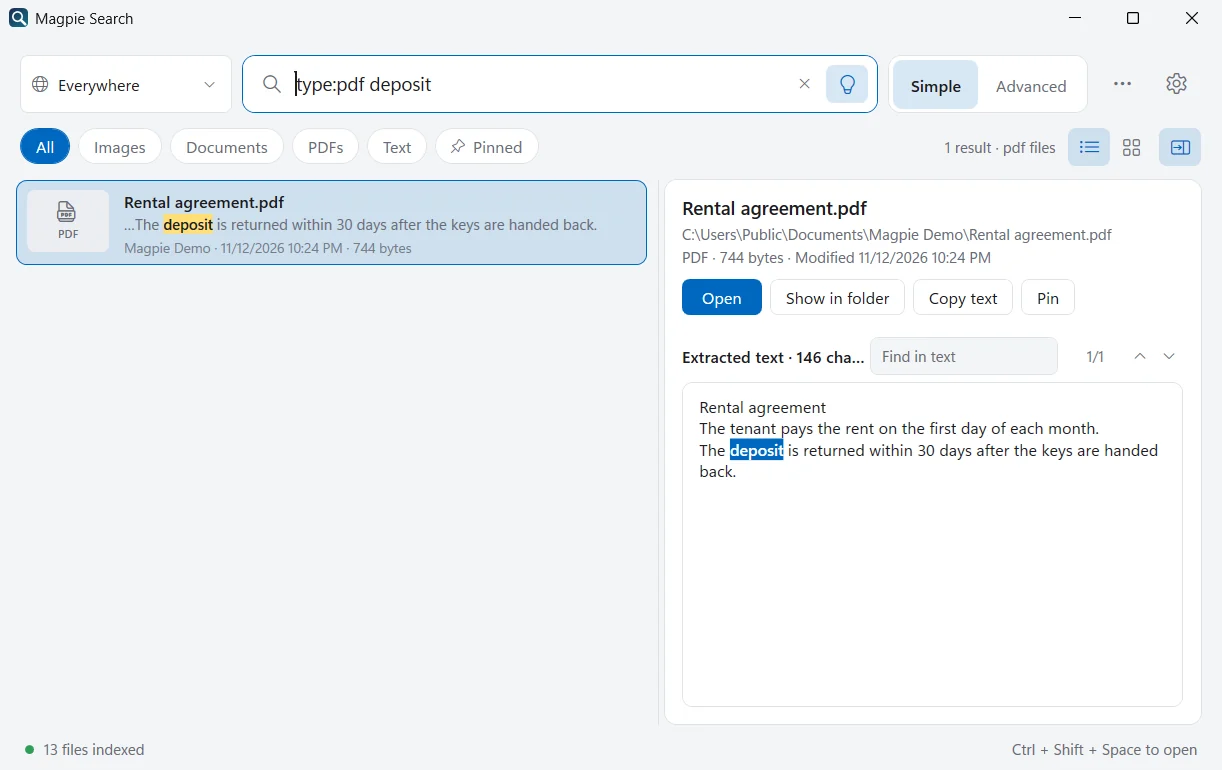
The text layer, plus OCR for scanned pages.
.pdf
Text and notes
Notes, logs and any extension you add.
.txt .md .markdown .log
Pictures
Screenshots, photos and receipts, read with OCR.
.png .jpg .gif .tiff .webp
Old binary Office files (.doc, .xls, .ppt), hidden and system files, developer folders such as node_modules and .git, and files over 300 MB are skipped.
Text in pictures.
Found.
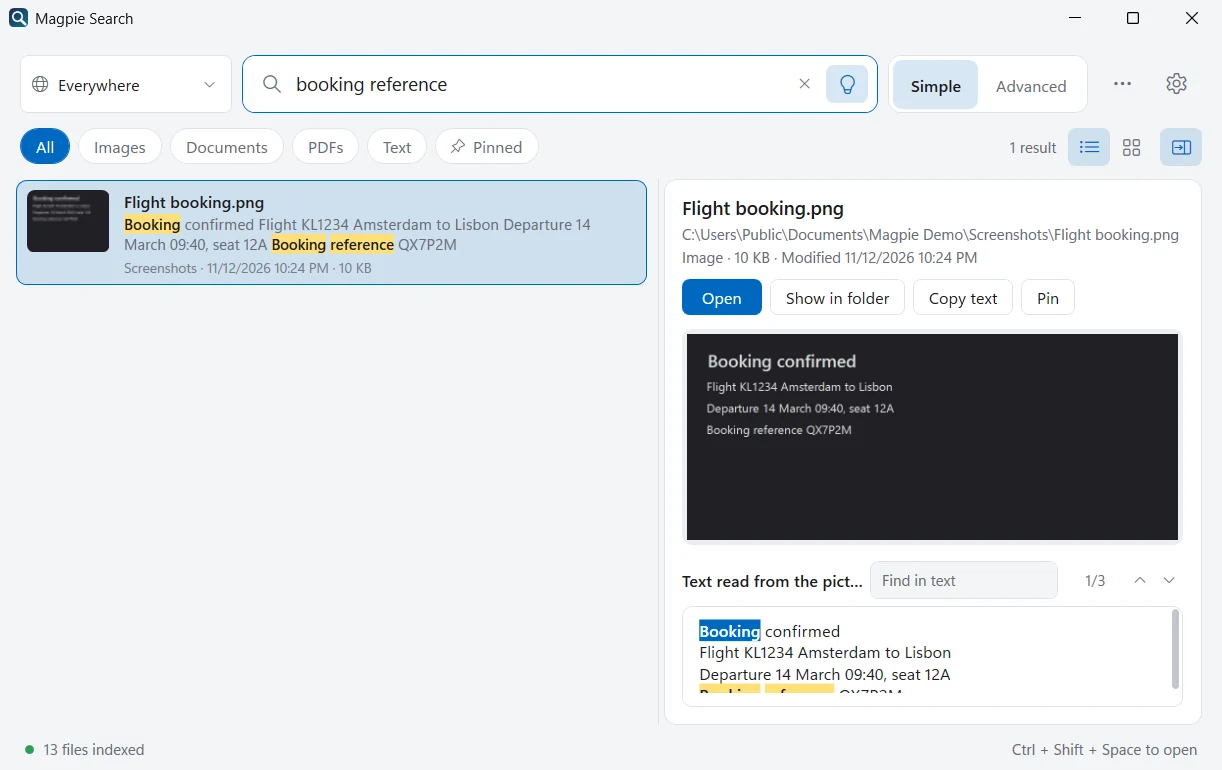
Screenshots, photos of documents, receipts and scanned PDFs are read with on-device OCR, so the booking reference in a screenshot is as searchable as a sentence in a Word file.
- PaddleOCR and Tesseract, with 17 language packs covering 50+ languages
- Handles dark-mode screenshots and mixed English + Persian or Arabic
- Copy the text out of any picture with one click
The whole text.
Every match lit.
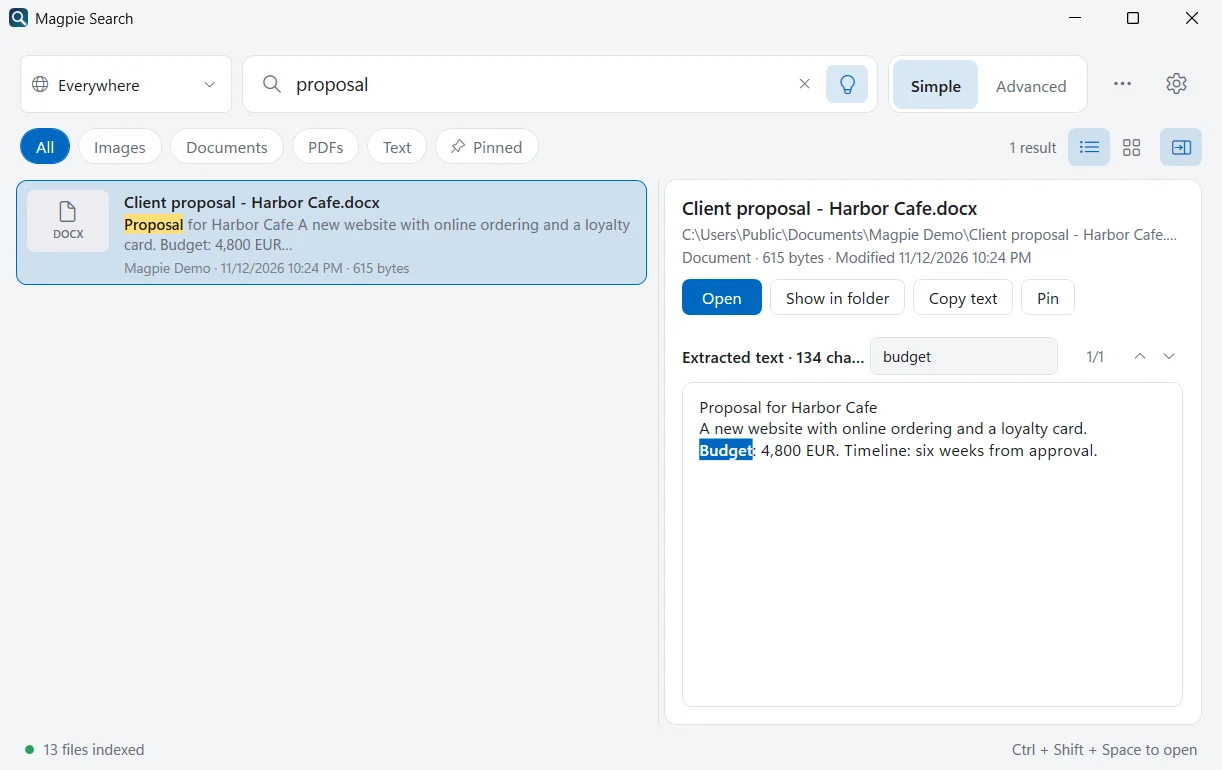
Select a result and the preview pane shows everything Magpie read from the file, not just the first lines, with every match highlighted.
- Find in text with F3 and Shift+F3
- Open, show in Explorer, copy the picture, file or text, or drag it into another app
- List or picture-grid view
Forgot the words?
Describe it.
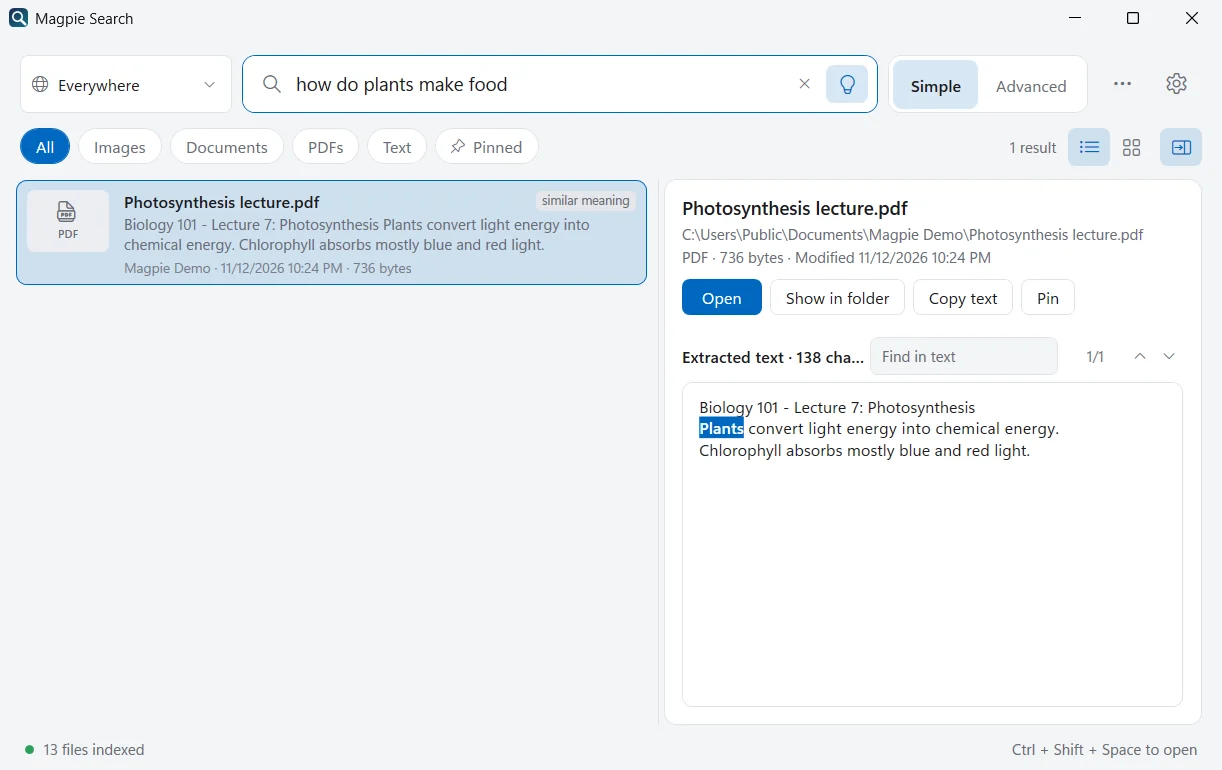
Optional on-device AI finds files that are about what you typed, even when they don't share a single word. Those results are marked “similar meaning”.
- English model of 23 MB, or a multilingual model of about 118 MB for about 100 languages
- Runs on your PC, combined with normal word matches
Type it.
Filter it.
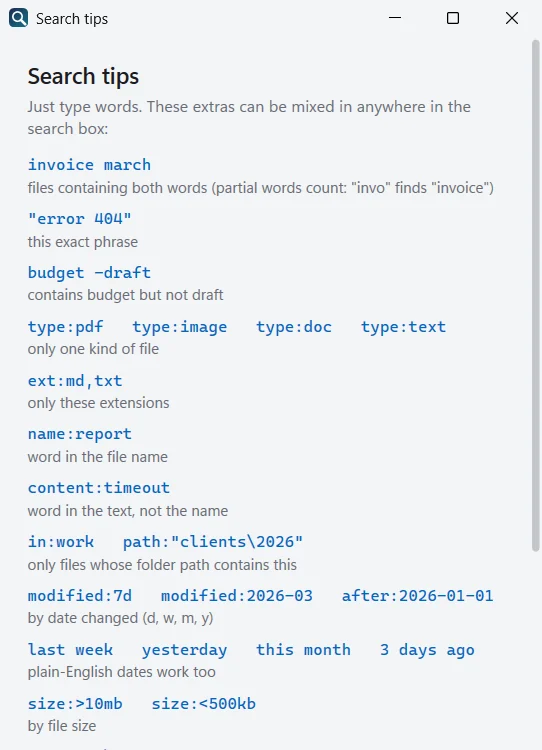
Just type words, or mix them with filters. Partial words match, so “invo” finds “invoice”. Put “quotes” around a phrase and a minus in front of a word to leave it out. Plain-English dates work too.
- type:pdf invoice last month
- ext:md,txt timeout
- name:report modified:7d
- size:>10mb sort:newest
- re:"INV-\d+"
- in:work is:pinned
- screenshots from last week
Duplicates and pins.
Sorted.
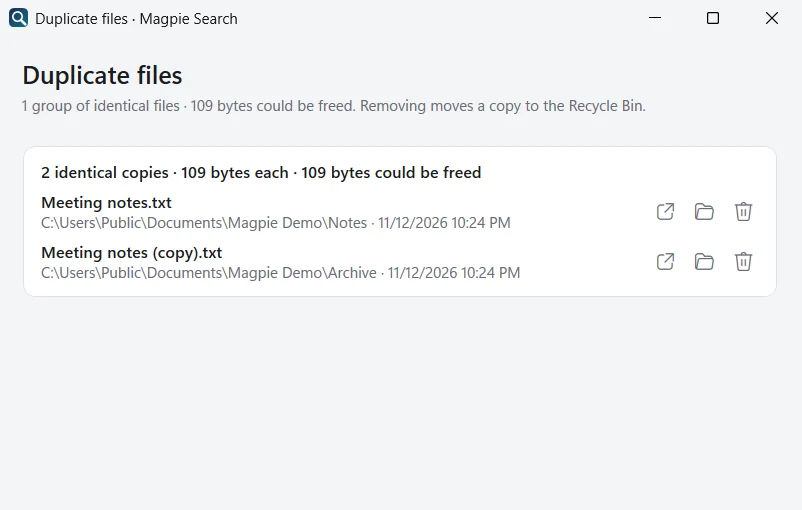
The duplicate finder groups identical files with a SHA-256 comparison, wherever they are and whatever they're called. It only ever moves a copy to the Recycle Bin, after you confirm.
- Pin the files you need often; they rank higher and have their own chip
- Recent searches, named collections of folders, and a scope box for one folder
- Advanced search: any-of, exact phrase, none-of, regular expressions, typo-tolerant
Nothing leaves your PC.
- Read on your PCText extraction, text recognition, Find by meaning and search all run locally.
- Only your foldersMagpie reads only the folders and kinds of files you choose. It never changes your files.
- One kind of downloadIt goes online only to fetch the models you switch on. No file, text or personal data is sent.
- Yours to deleteThe index, settings and models live in %LocalAppData%\Magpie. Delete it any time.
Like Windows Search.
For what's inside.
Windows Search is built for apps, settings and file names. Magpie is built for the words in your files, including the ones that only exist as pixels.
Built for real PCs.
Even old ones.
Magpie stays out of your way, on a new desktop or an older laptop.
Tuned at first run
Magpie checks your CPU threads and memory and picks the text-recognition setup that suits them: Windows' built-in OCR on light PCs, PaddleOCR on stronger ones.
Light when idle
About 20 MB of memory in the tray, 0% CPU when there's nothing to do, and Windows Efficiency mode when no window is open.
Gentle while reading
One file at a time at below-normal priority. Models are unloaded when idle, and reading pauses on battery.
Any window size
From a narrow strip to full screen. It follows your light or dark theme and opens from anywhere with Ctrl+Shift+Space.
Free. No catch.
Magpie Search costs nothing, and you don't pay with your data either.
- No account
- No ads
- No tracking
- No trial or tiers
- Every feature included
Questions, answered.
Is Magpie Search really free?
Yes. Magpie Search is free, with every feature included. There is no account, no trial, no paid tier, no ads and no tracking.
Does Magpie upload my files anywhere?
No. Magpie reads your files on your own PC, recognises text in pictures on your PC, and keeps its index in %LocalAppData%\Magpie. The only time it goes online is to download the models you switch on (text-recognition languages and the optional Find by meaning model). Those are ordinary file downloads: no file, text or personal data is sent.
Which file types can it read?
Word, Excel and PowerPoint files (.docx .docm .xlsx .xlsm .pptx .pptm), OpenDocument files (.odt .ods .odp), .rtf, PDFs (with text recognition for scanned pages), text and notes (.txt .md .markdown .log, plus any extensions you add, such as .csv, .json or .py) and pictures (.png .jpg .jpeg .bmp .gif .tif .tiff .webp).
It doesn't read old binary Office files (.doc .xls .ppt), and it skips hidden and system files, node_modules, .git, bin and obj folders, and files over 300 MB.
Which languages can it read in pictures?
English is on by default. In Settings › Text recognition you can add 17 language packs that cover more than 50 languages: Latin-script languages, Chinese, Japanese, Korean, Cyrillic, Greek, Thai, Hindi, Tamil, Telugu, Persian, Arabic, Urdu, Hebrew, Bengali and Vietnamese. Magpie also handles dark-mode screenshots and screenshots that mix English with Persian or Arabic.
Does it work on Windows 10?
Yes. Magpie Search runs on Windows 10 version 2004 or later and on Windows 11, 64-bit. It needs about 220 MB of disk space for the program.
How is it different from Windows Search?
Windows Search is built mainly for apps, settings and file names. It can search inside some files, but only in indexed locations, only for file types that have a content filter, and it doesn't read the text in screenshots or scanned PDFs. Magpie reads every supported file in the folders you choose, including text inside pictures, shows the full extracted text with every match highlighted, and adds a query language and optional Find by meaning.
Does it work offline?
Yes. Reading documents, PDFs and notes never needs the internet. Text recognition needs a one-time download of each language you use (English is about 12 MB) and Find by meaning needs its model once. After that, everything works without a connection.
Will it slow down my PC?
Magpie reads one file at a time on a below-normal-priority thread, uses 0% CPU when there's nothing to do, and runs in Windows Efficiency mode when no window is open. In the tray it uses about 20 MB of memory. It can also pause while your laptop is on battery.
How do I remove Magpie's data?
Everything Magpie stores is in %LocalAppData%\Magpie: the index, settings, downloaded models and a log. Settings › General › Open data folder takes you there. Delete that folder at any time to remove all of it. Your own files are never changed.
How do I upgrade from Magpie — Screenshot Finder?
Version 2 was called Magpie — Screenshot Finder. Install version 3 and it upgrades in place: your folders, languages and the text already read from your pictures are kept, so nothing has to be read again.
Your next search.
Already indexed.
Magpie Search 3.0 for Windows 10 and 11. Free, private, and entirely on your PC.


Version 3.0.0 · More download options and system requirements